

Quick Setup, one step at a time, with rough numbers.
This is an educational walkthrough using a fictional family. It is not financial advice, and the right answers for you depend on facts a lesson cannot know.
Watch this lesson (4 minutes) Opens YouTube in a new tab.
1.Can I build my own plan in ten minutes?
You have watched Ray and Angie’s plan for three lessons. Now it is your turn. You need about ten minutes and a few numbers. They can be rough. As always: this is an educational walkthrough. It isn’t financial advice.
2.Close beats perfect
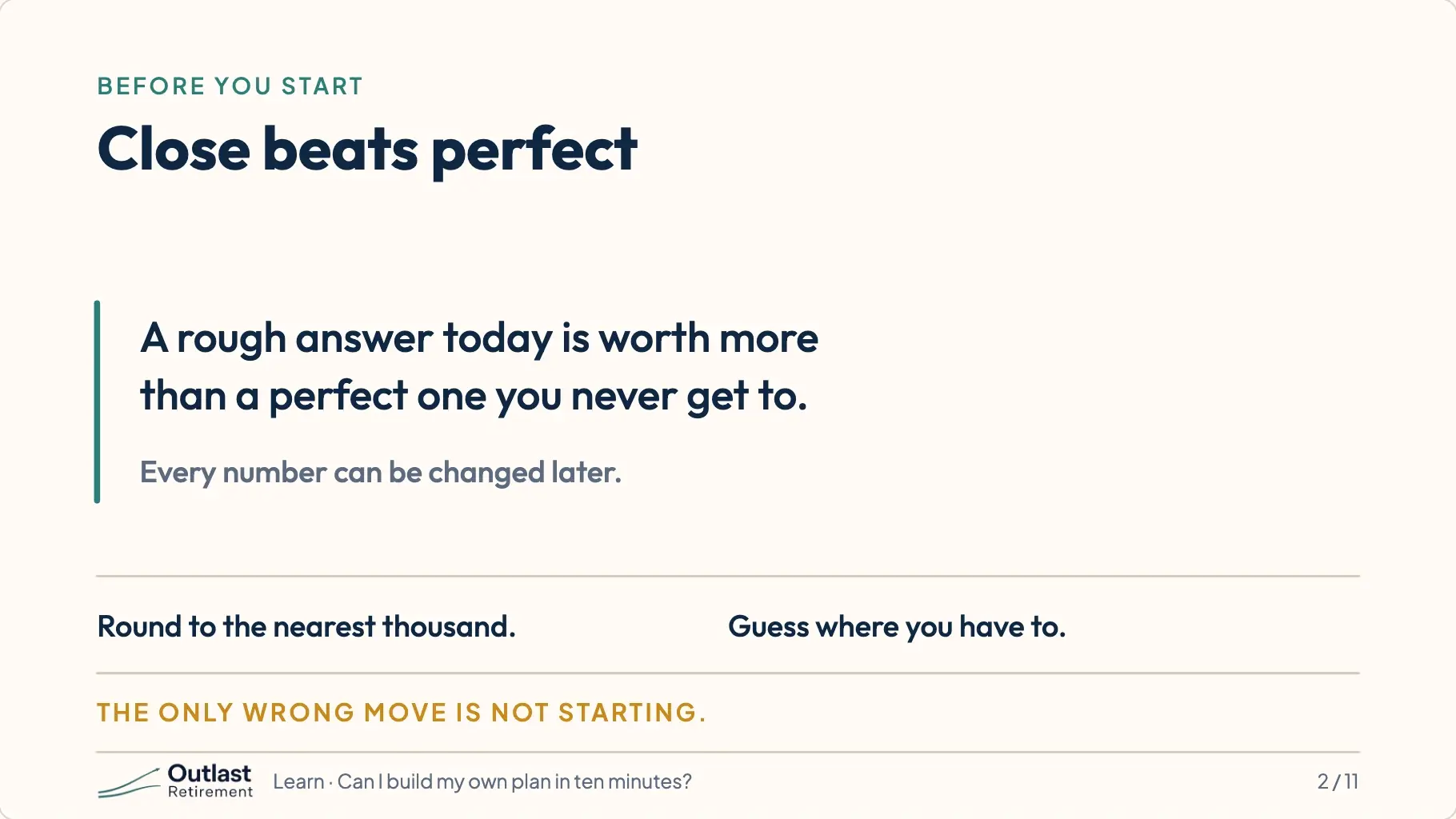
People put this off because they think they need exact figures. You don’t. A rough answer today is worth more than a perfect one you never get around to. You can fix any number later.
3.What to have ready
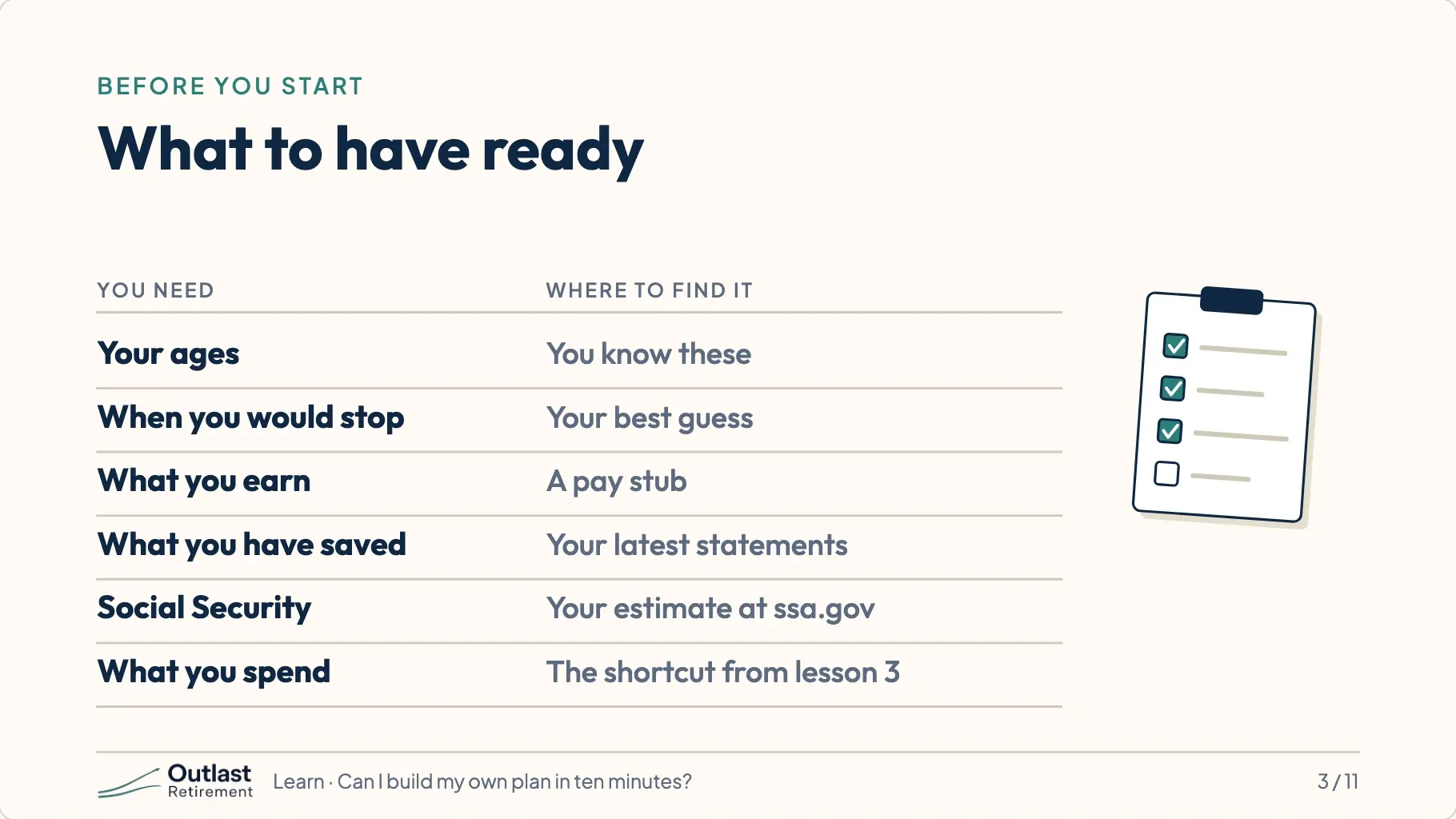
Here is what to have in front of you. How old you are and when you would like to stop working. What you earn. What you have saved, from your latest statements. Your Social Security estimate from ssa.gov. And what you spend, from the shortcut in lesson three.
4.Your numbers never leave your device
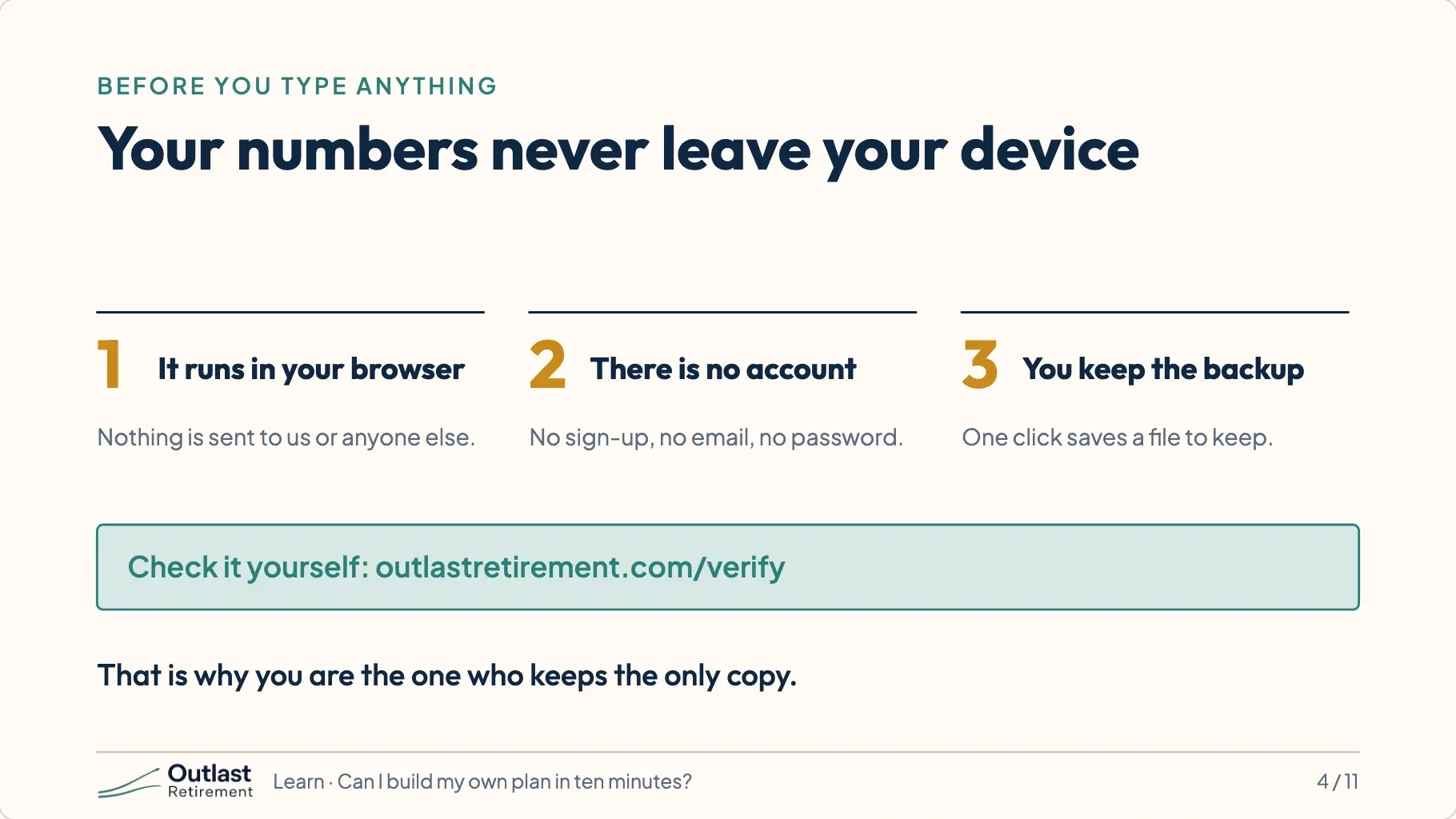
One thing before you type anything. OutlastRetirement runs inside your own browser. There is no account to create. Your numbers never leave your device. That also means you are the one who keeps the backup, and the app will remind you.
5.Open the app and choose how to start
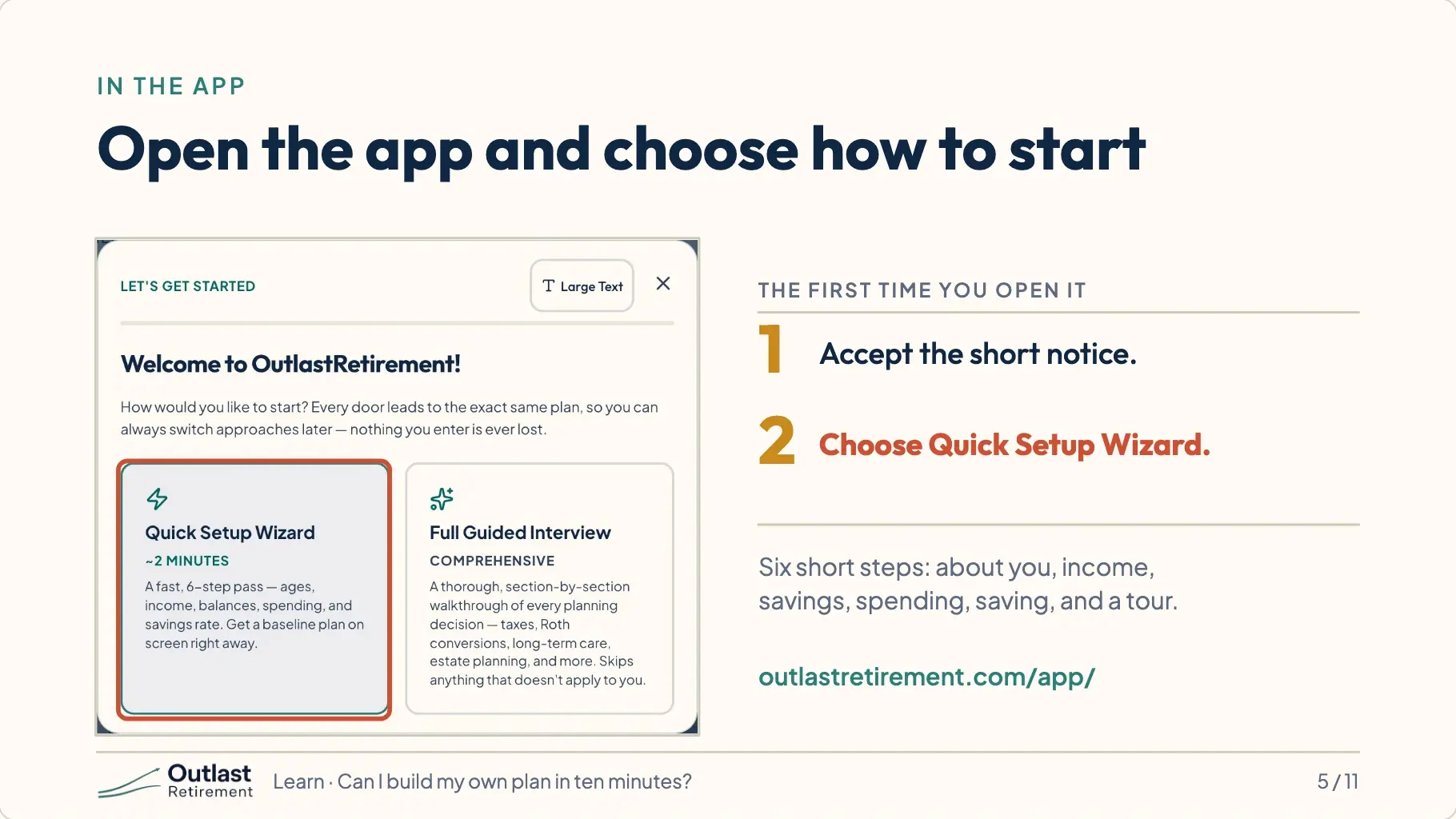
Open the app. The first time, it shows a short notice to accept, then asks how you would like to start. Choose Quick Setup Wizard.
6.About you
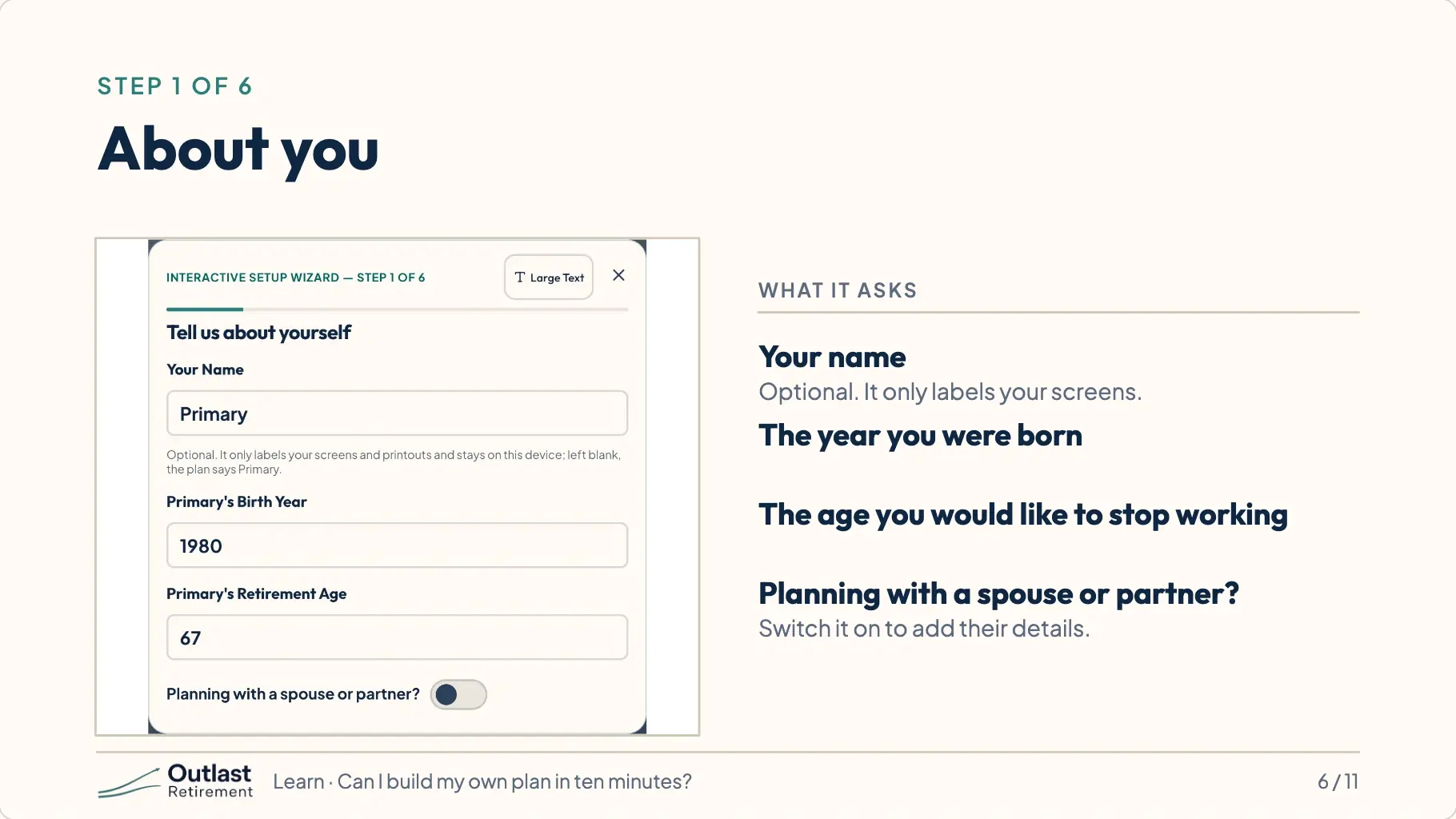
Step one is about you. Your birth year, the age you would like to stop working, and whether you are planning with a spouse or partner.
7.Money coming in
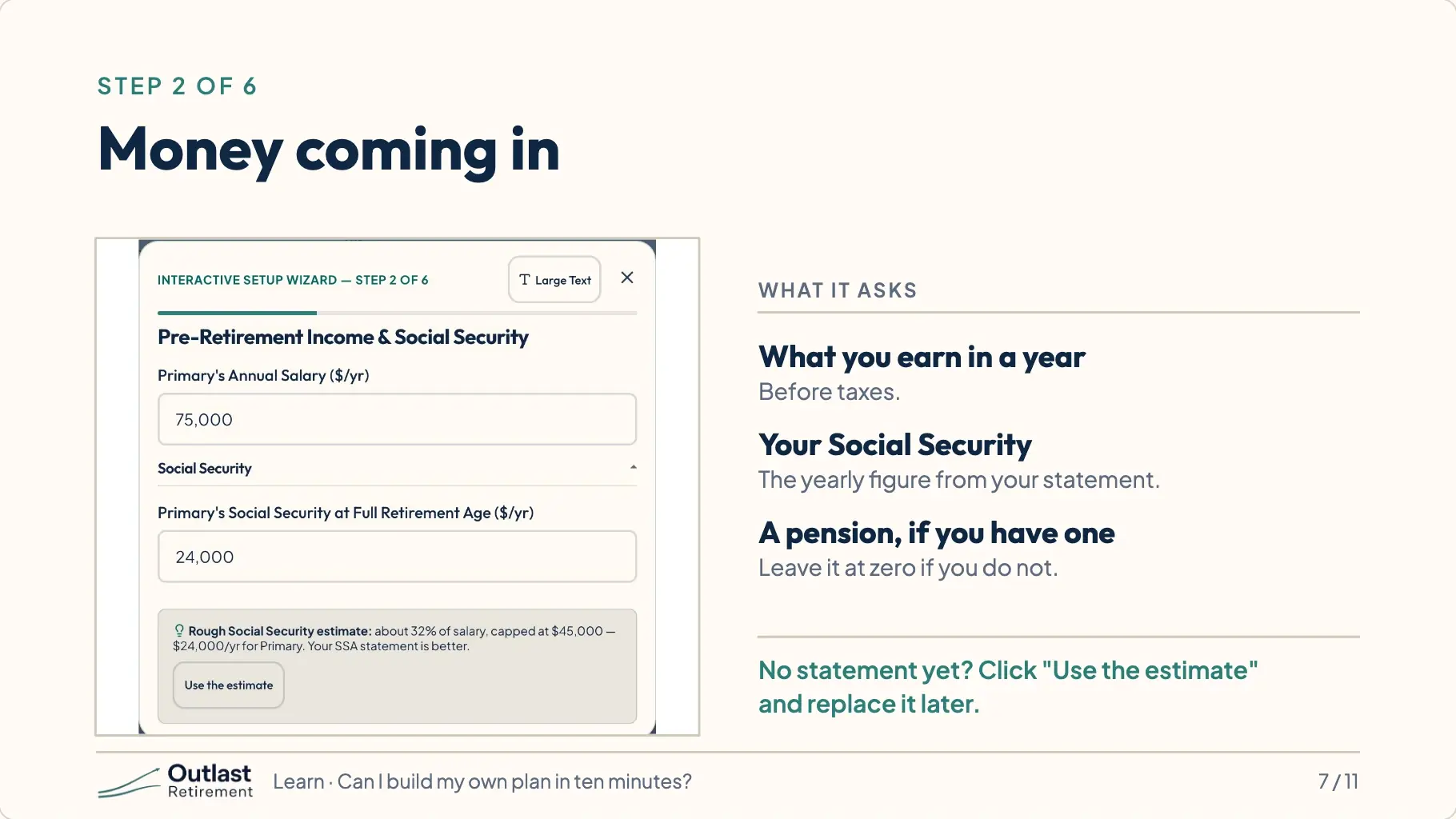
Step two is money coming in. What you earn today, and the Social Security estimate you looked up. If you don’t have it yet, use the estimate the app offers and come back.
8.What you have saved
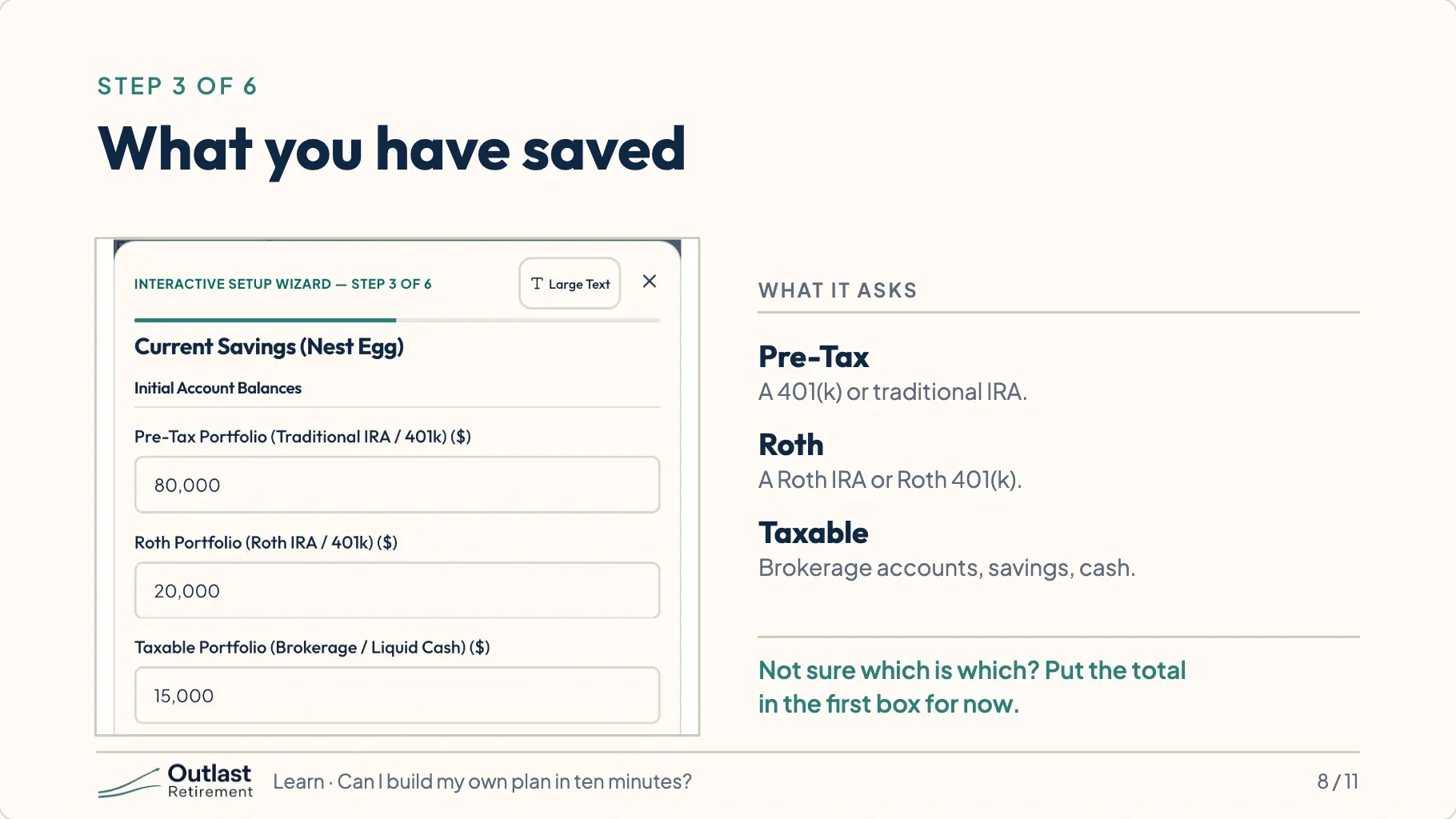
Step three is your savings. Add up your retirement accounts at work, any IRAs, and other savings or investments. The app asks for them by type because they are taxed differently. If you are not sure which is which, put the total in the first box for now.
9.Spending, then saving
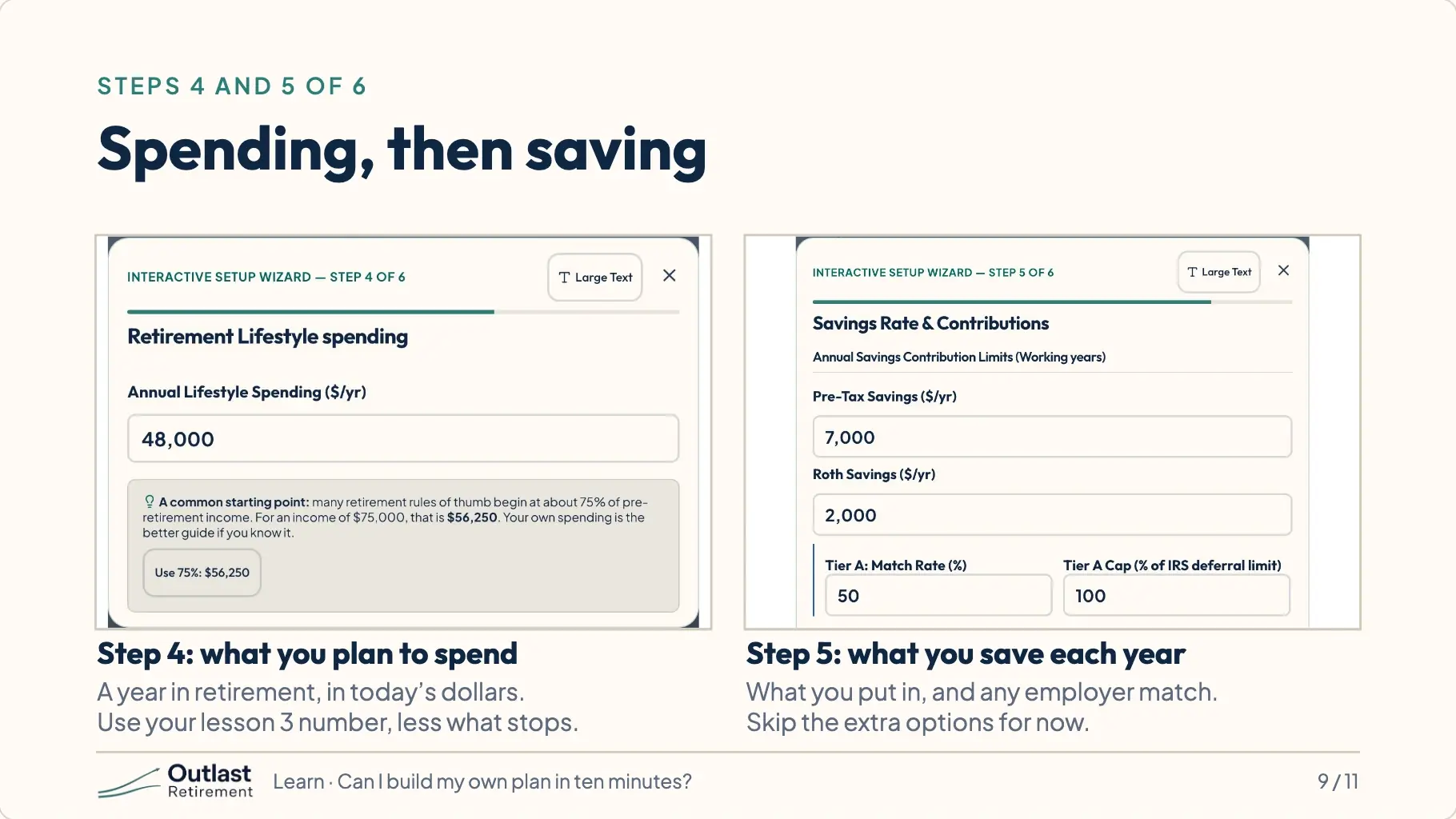
Step four is what you plan to spend each year in retirement. Use the number from lesson three and trim what will stop. Step five is how much you add to savings each year, and anything your employer adds. Both steps show extra options. You can skip those for now.
10.A short tour, then your answer
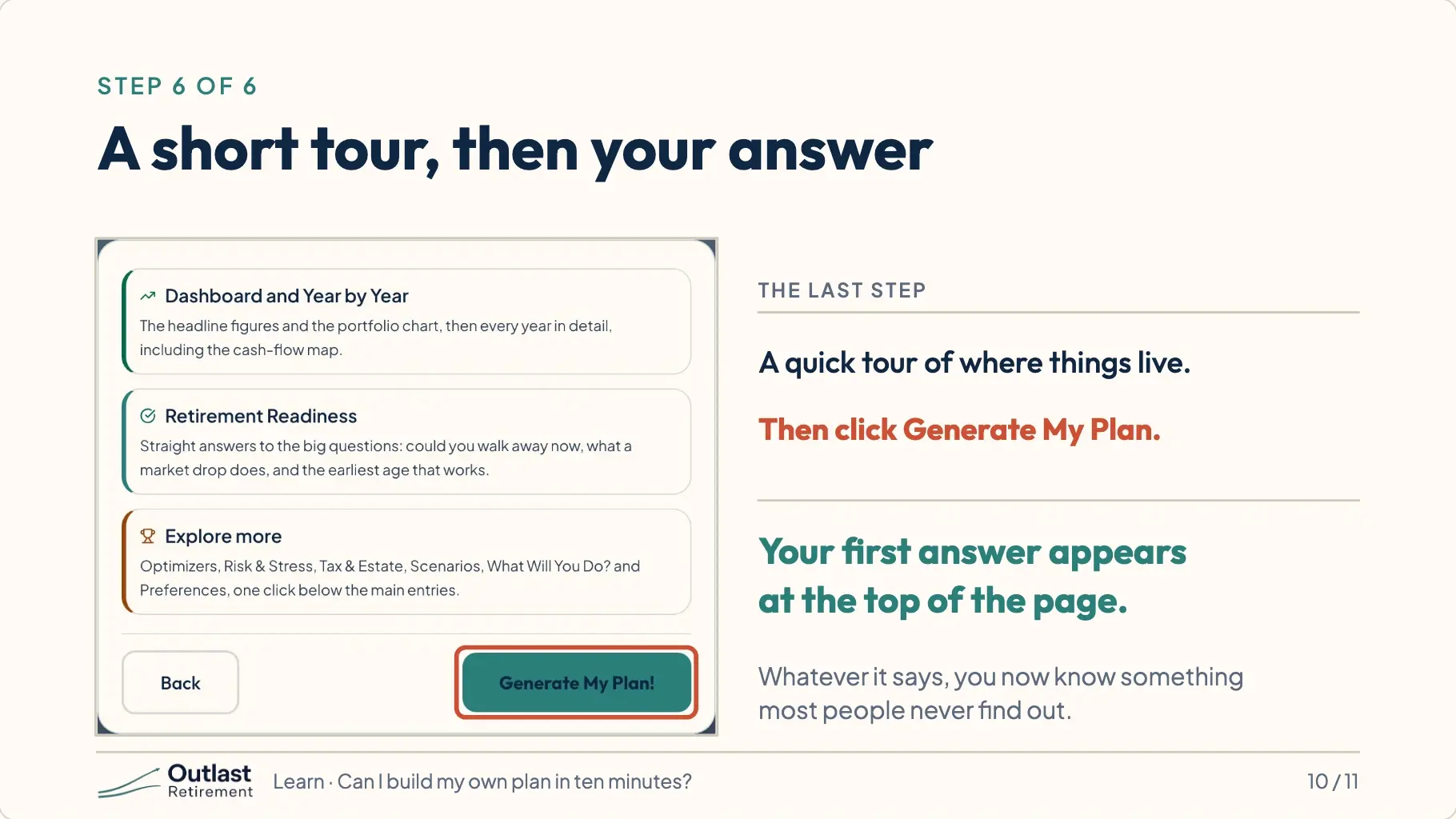
The last step is a short tour of where things live. Then click Generate My Plan. The app runs your whole life, year by year, the same way it did for Ray and Angie. At the top is your answer. Whatever it says, you now know something most people never find out.
11.Build it. Then back it up.
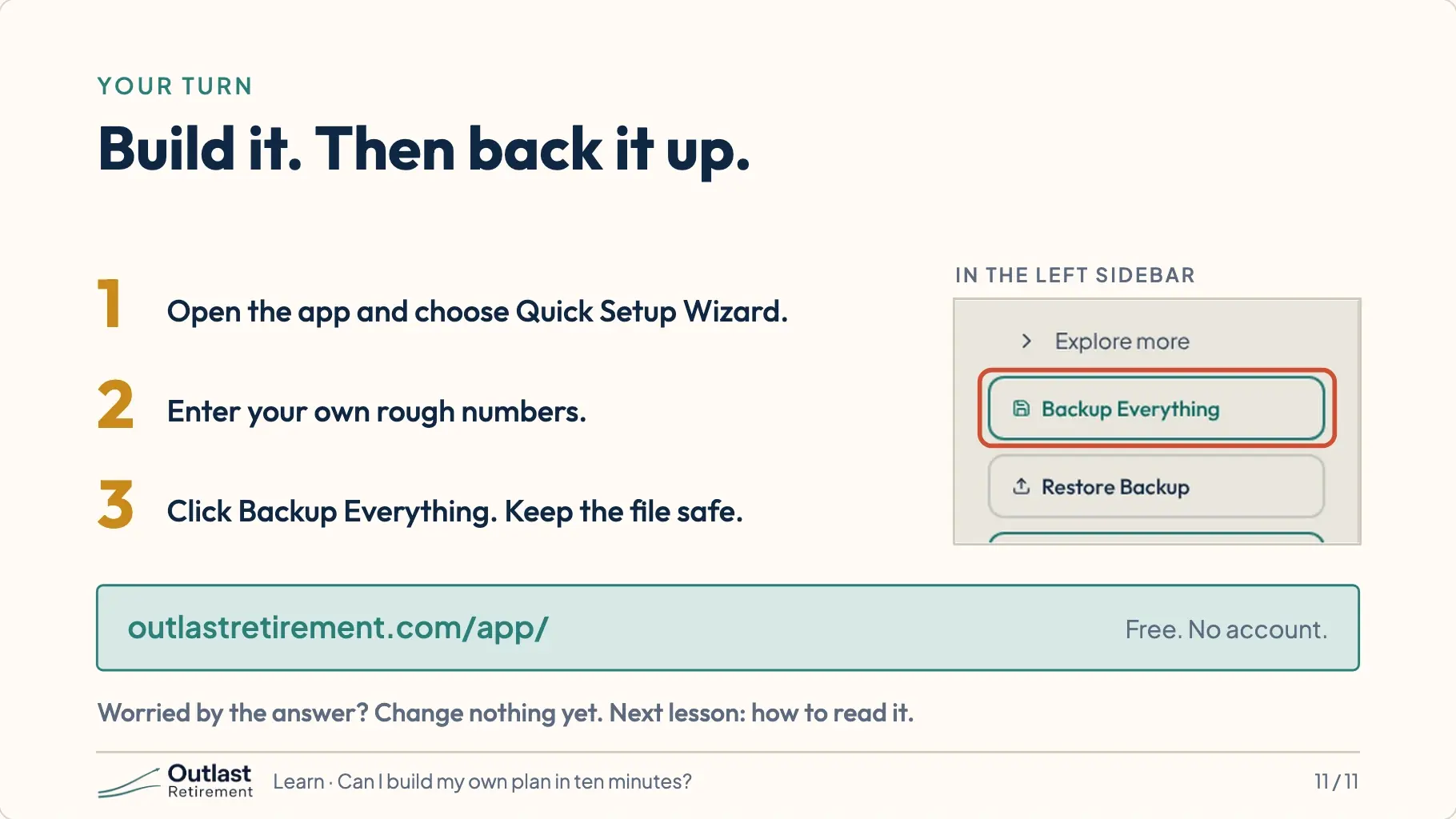
Your turn, for real this time. Open the app and build your plan. When you finish, click Backup Everything and keep the file somewhere safe. It is the only copy. If the answer worries you, don’t change anything yet. Next lesson, we learn to read it properly. Then we fix it. This is education, not financial advice.
Try it
The planner opens in your browser. Your numbers stay on your device, and there is no account to create.
Open the planner