

A step-by-step walkthrough to set up private, automated stock prices and dividends with your own free Google Sheet.
A walkthrough of a Premium tool, recorded in a demo Google account. Addresses are blurred.
Watch the walkthrough (4 minutes) Opens YouTube in a new tab.
1.Set up Live Pricing
Detailed Holdings can fill in prices, dividends and yields for you. To do that, it uses a free Google Sheet in your own Google account. Setting it up takes about five minutes, and you only do it once. Let’s walk through it.
2.What you need
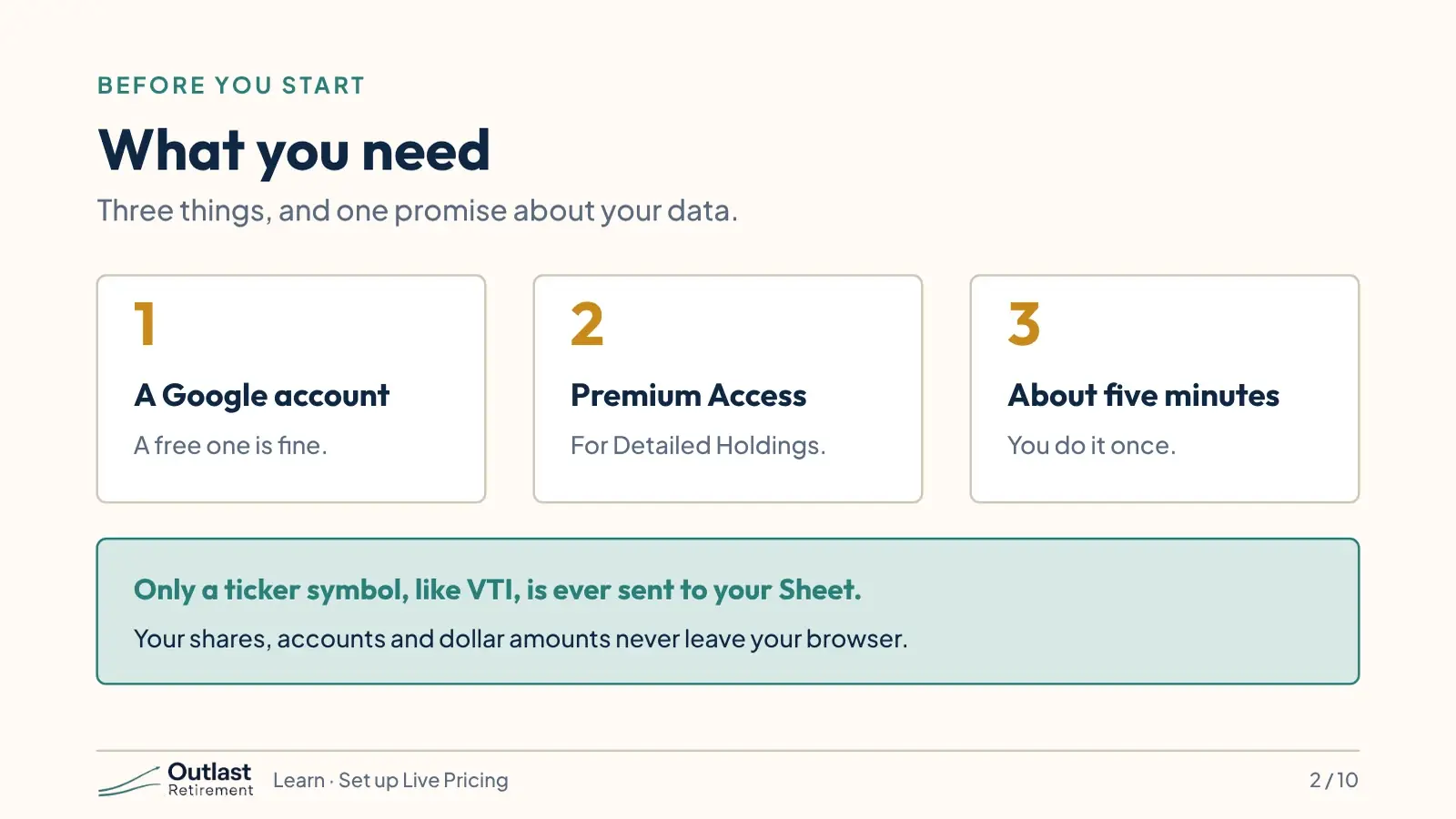
You need three things: a Google account, and a free one is fine; Premium Access; and about five minutes. One thing first. The only thing the app ever sends to your Sheet is a ticker symbol, like VTI. Your shares, your accounts and your dollar amounts never leave your browser.
3.Step 1: make your copy
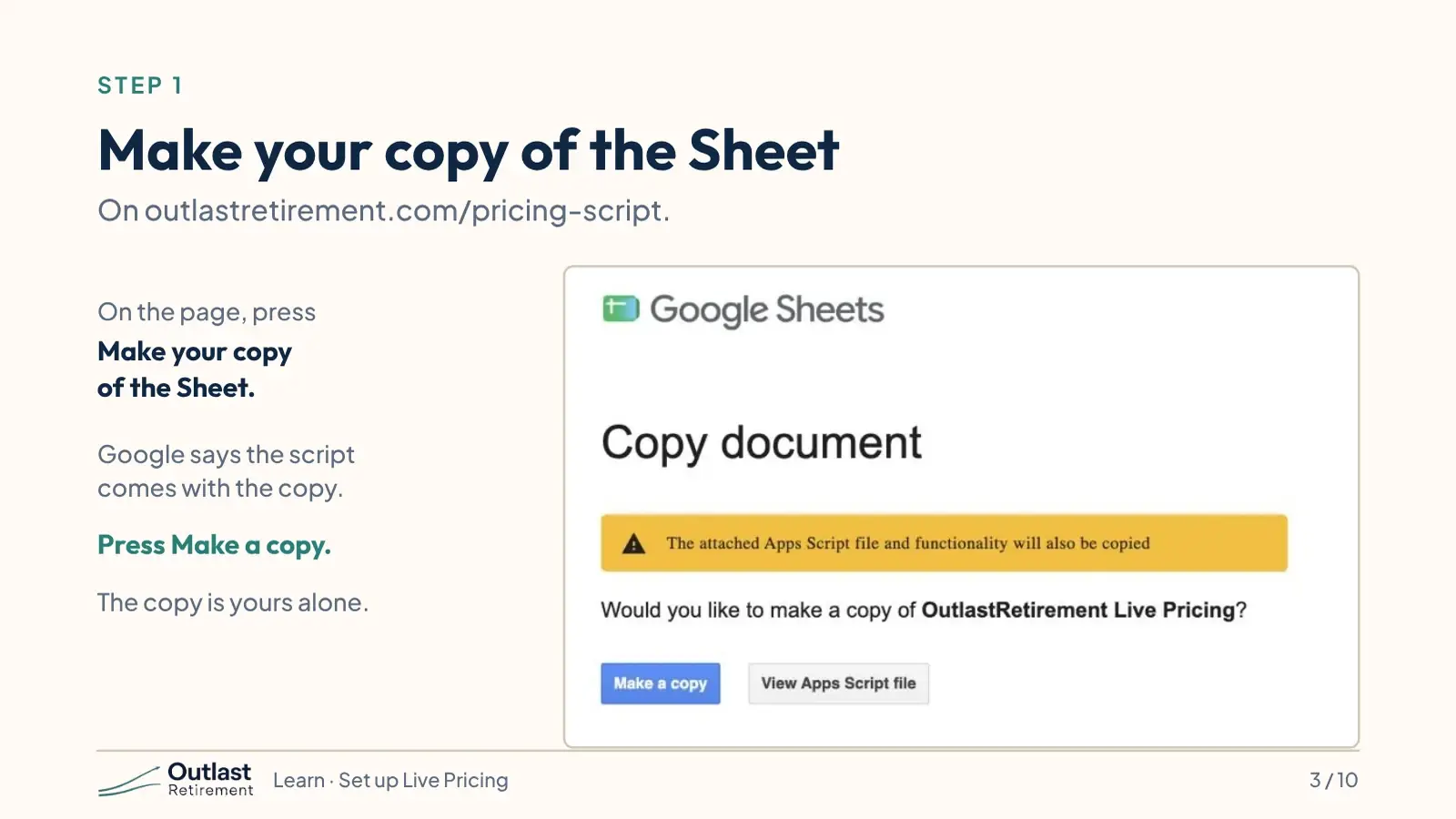
Step one. Go to outlastretirement dot com slash pricing script, and press Make your copy of the Sheet. Google asks if you want to make a copy, and tells you the script comes with it. Press Make a copy. The copy is yours alone.
4.Step 2: open the script and deploy it
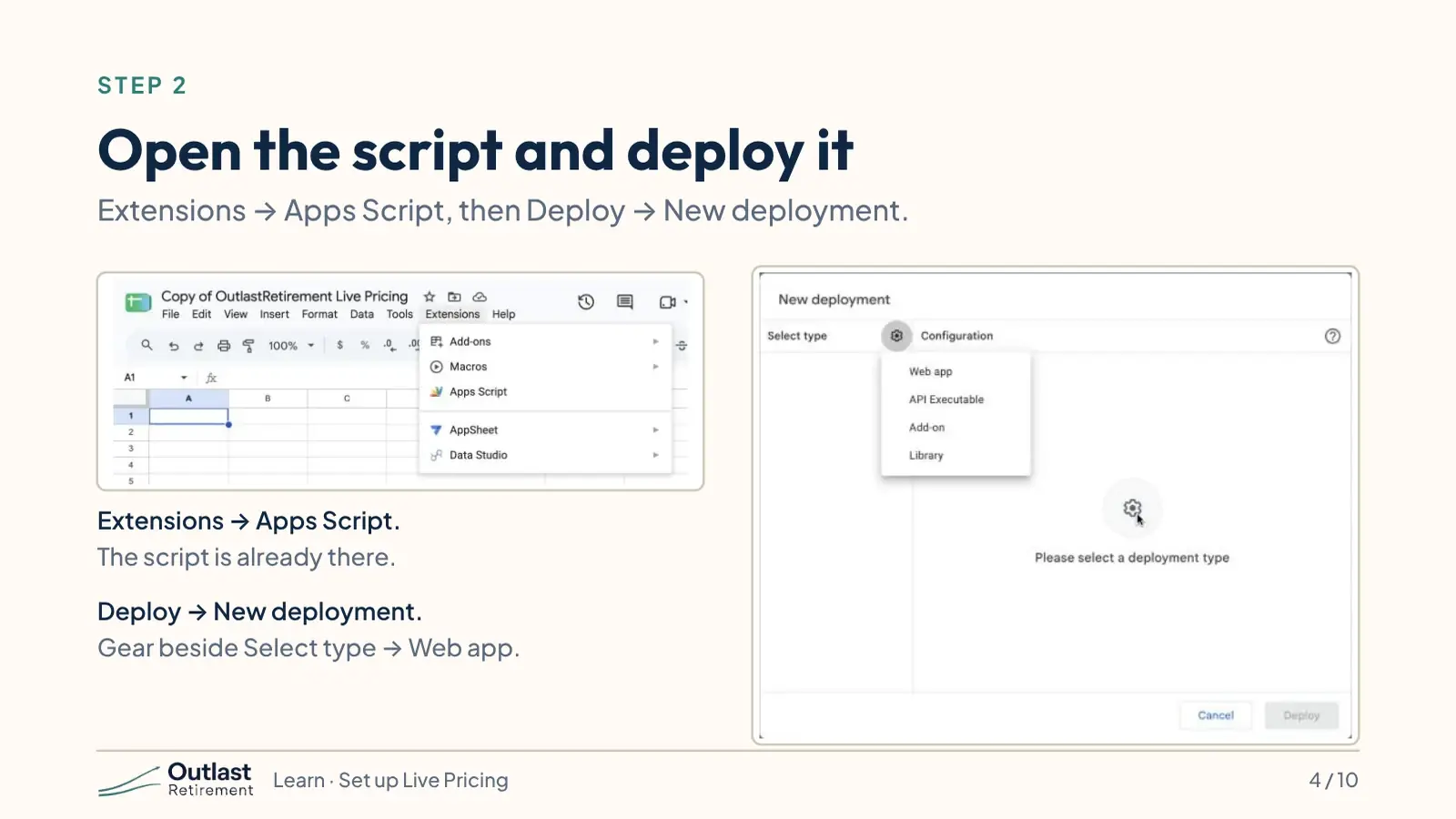
Step two. In your new Sheet, open the Extensions menu and choose Apps Script. The script is already there. Press Deploy, then New deployment. Press the little gear next to Select type, and choose Web app.
5.Who has access: Anyone
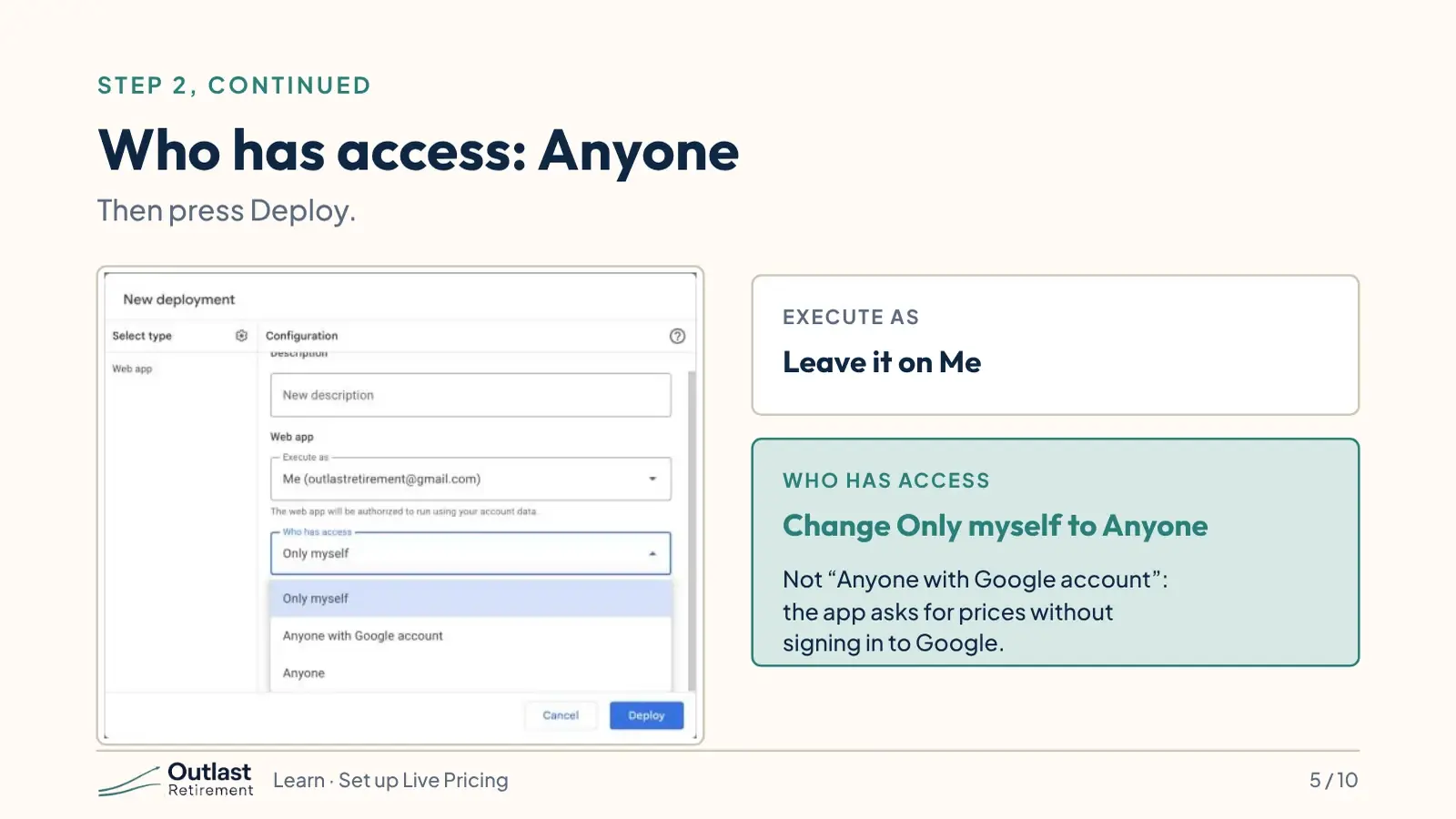
Two settings. Execute as stays on Me. Who has access starts on Only myself. Change it to Anyone. Not Anyone with Google account. Just Anyone. The app asks your Sheet for prices without signing in to Google, so this is the setting it needs. Then press Deploy.
6.Step 3: allow it
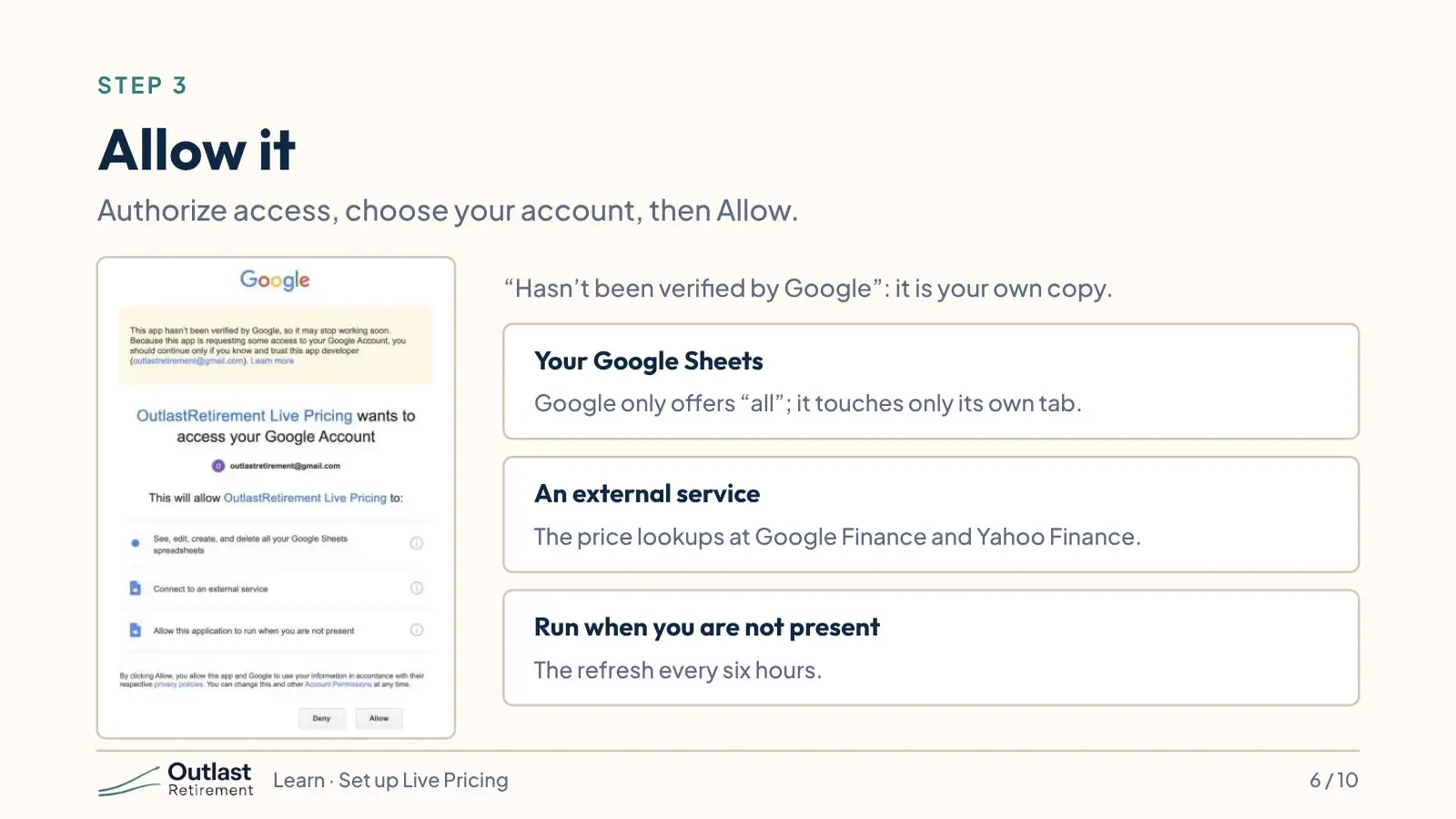
Step three. Google asks you to allow it. Press Authorize access and pick your account. Google notes the app hasn’t been verified. That’s because it is your own copy, and Google hasn’t reviewed it. It lists three things. Your Sheets: Google only offers this as all your Sheets, but the script only touches its own tab. An external service: that’s the price lookups. Running when you’re not there: that’s the refresh every six hours. Press Allow.
7.Step 4: copy the Web app address
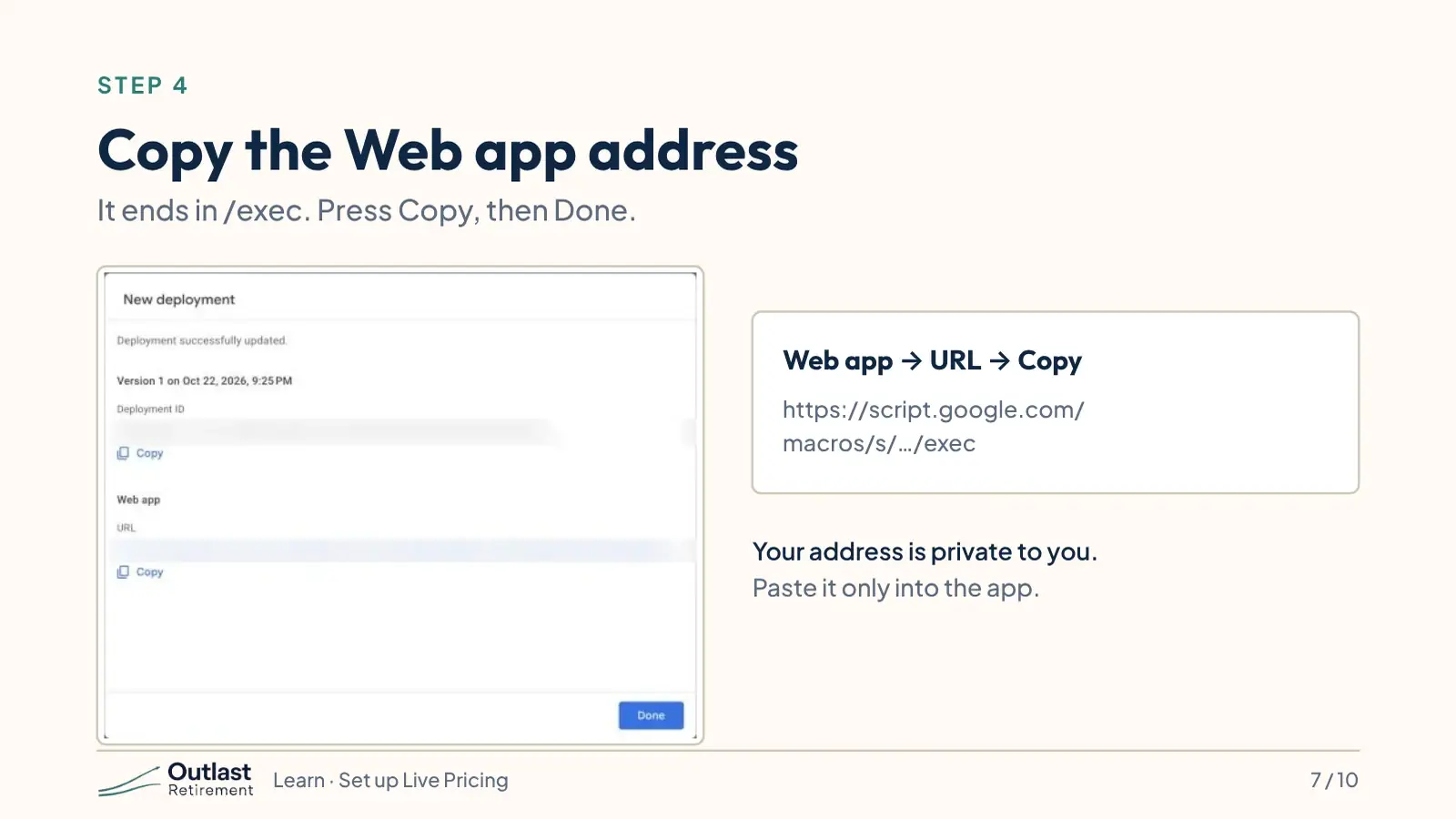
Step four. Google shows your Web app address. It ends in slash exec. Press Copy, then Done.
8.Step 5: paste it into the app
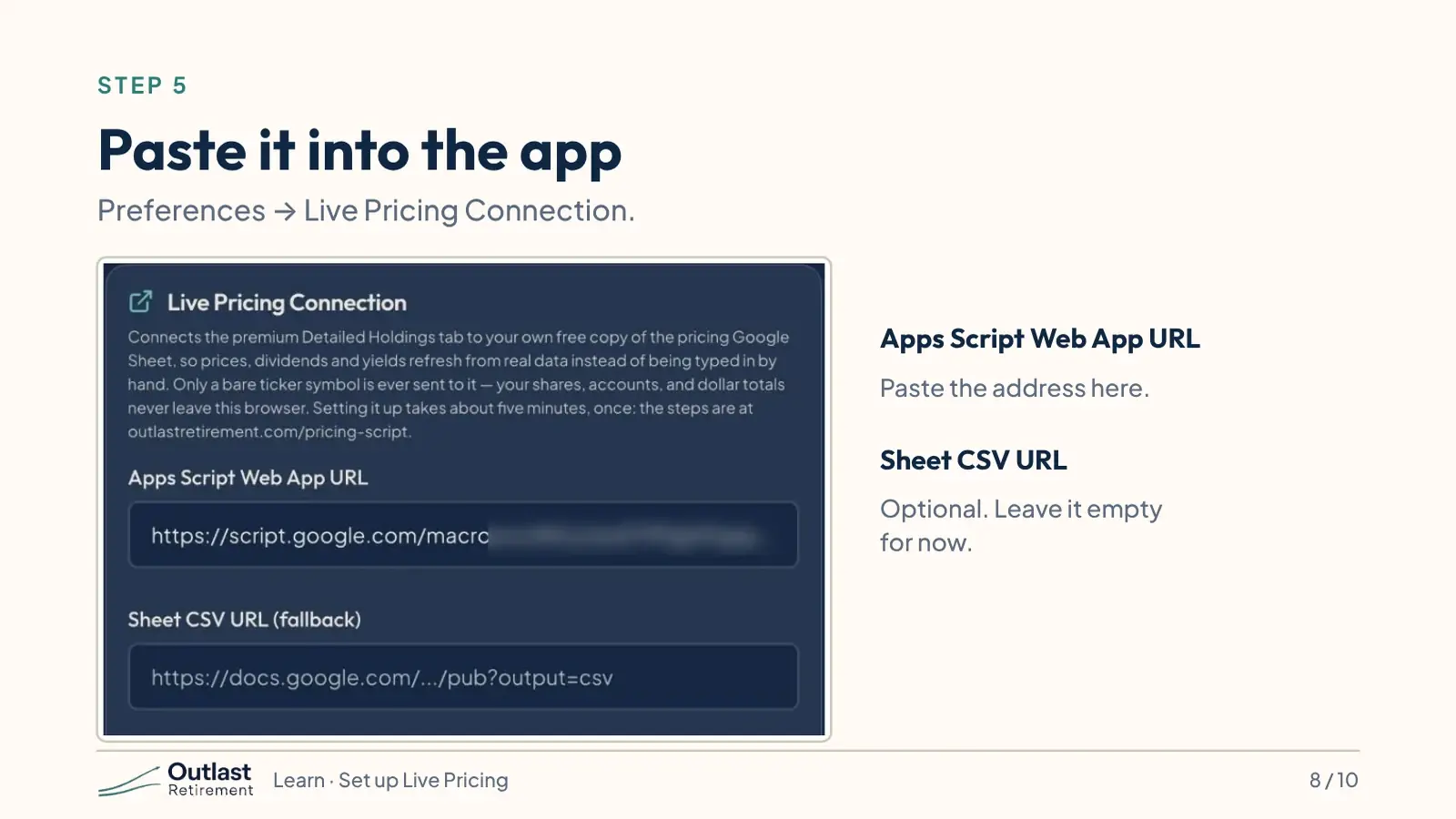
Step five. Open the app, go to Preferences, and find Live Pricing Connection. Paste the address into Apps Script Web App URL. That’s the connection.
9.Step 6: refresh
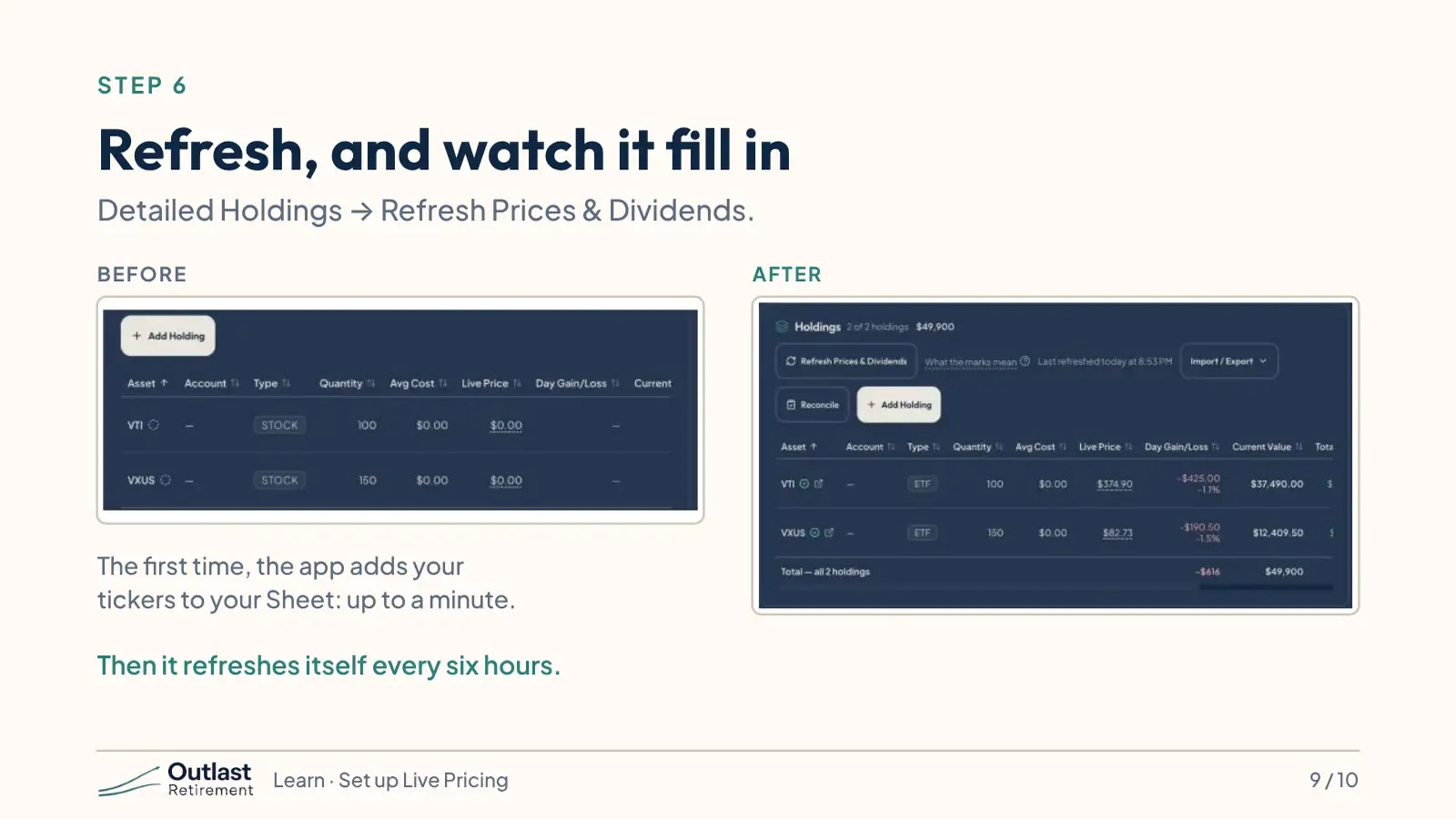
Step six. On Detailed Holdings, press Refresh Prices and Dividends. The first time, the app adds your tickers to your Sheet, so give it up to a minute. Then the prices, the day’s change and the values fill in. From now on, your Sheet refreshes itself every six hours.
10.Keeping it current
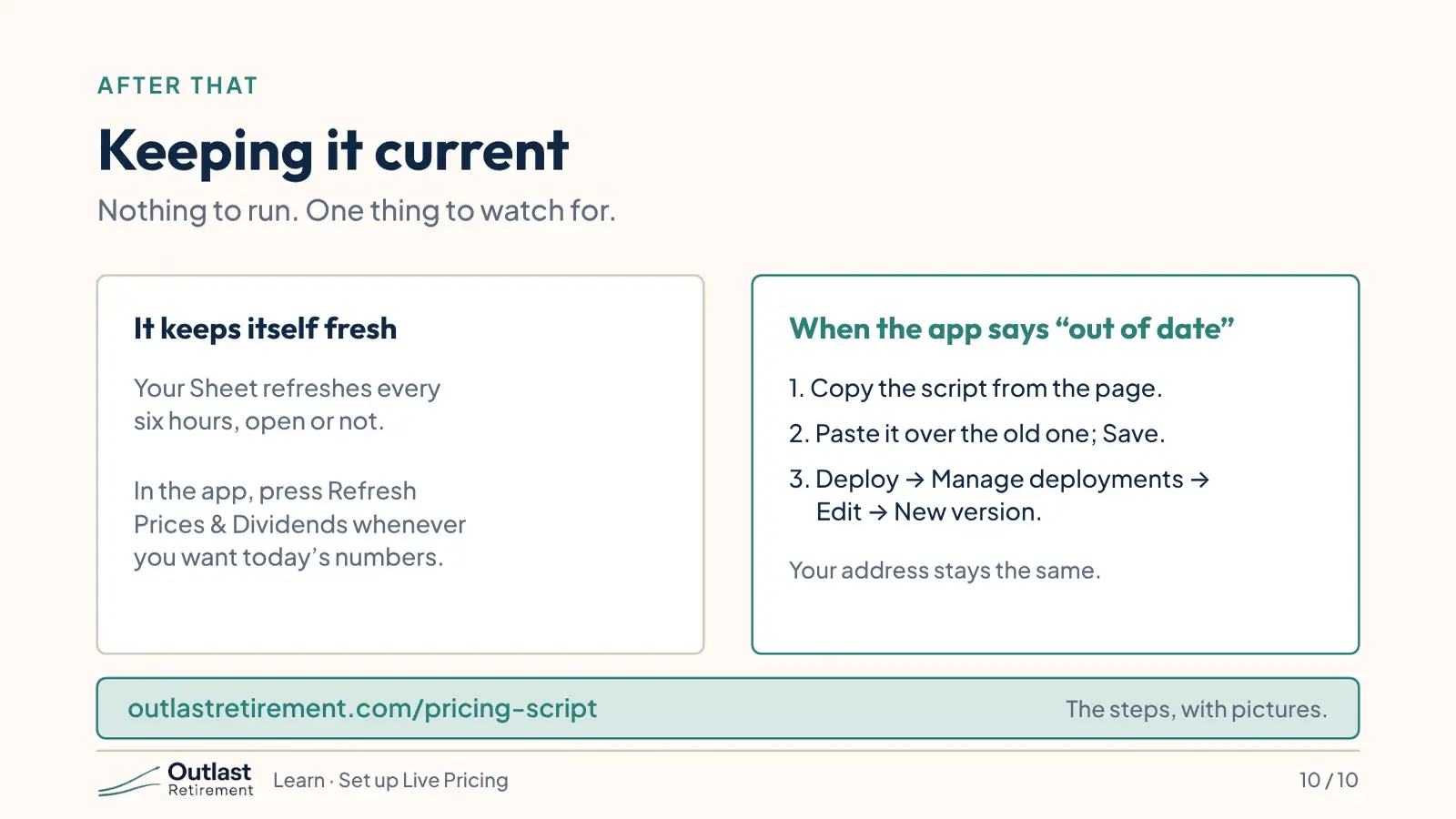
That’s it. Two things to know. Your Sheet keeps itself fresh, so there’s nothing to run. And now and then we improve the script. When we do, the app tells you. Copy the new script from the pricing script page, paste it over the old one in Apps Script, and save. Then choose Manage deployments, Edit, and New version. Your address stays the same. The written steps, with pictures, are at outlastretirement dot com slash pricing script.
Try it
Paste your Web app address into Live Pricing Connection. The app uses it only to ask your own Sheet for prices; your shares, accounts and amounts stay in your browser.
Open Preferences in the planner